


Auto Delivery help
How to manage your Auto Delivery
Change flavour, move a date, add a one-off, skip, pause or order early, all in a minute from your LYTES account. Here's exactly where to tap.
Sign in and find your Auto Delivery
Everything in this guide starts from the Auto Delivery tab in your LYTES account. There's no password to remember.
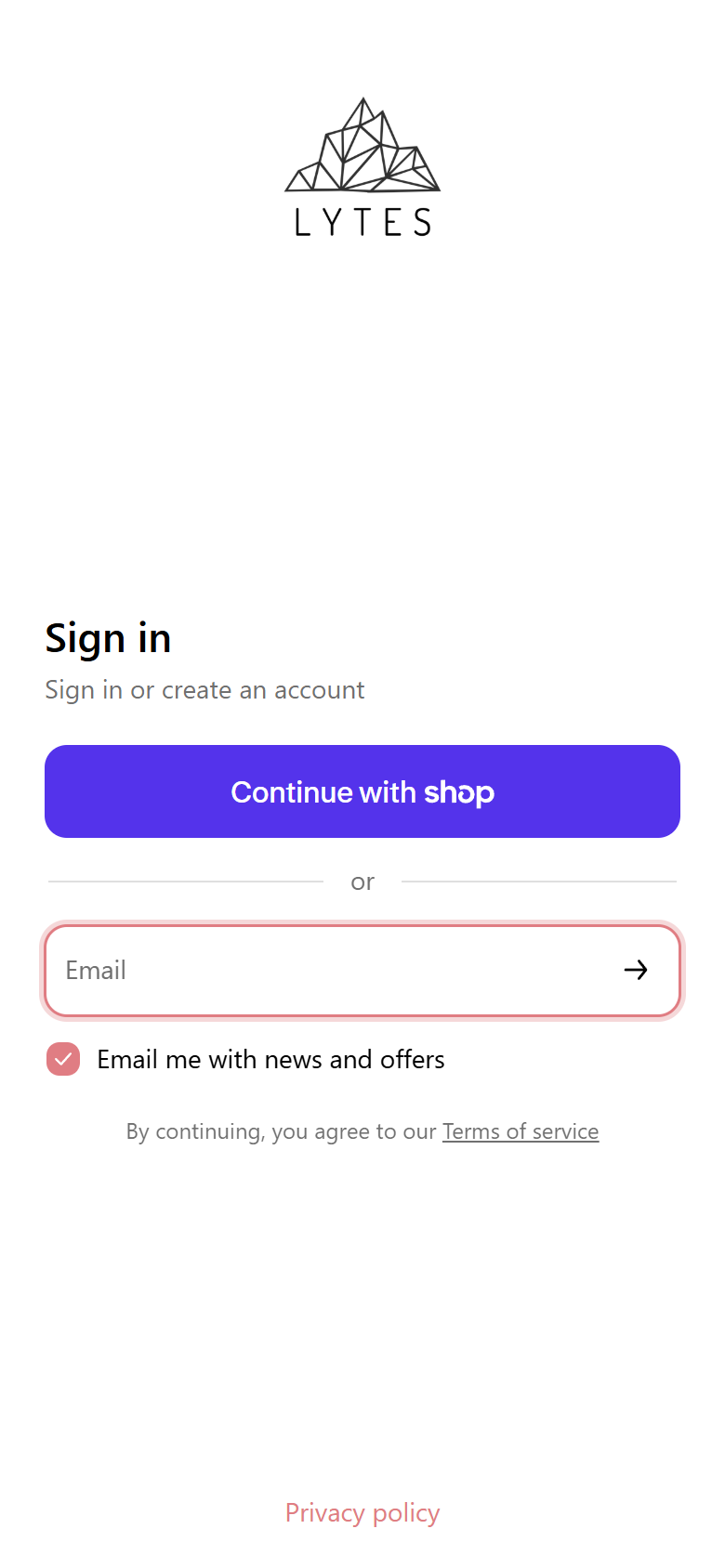
- Go to account.lytes.com.au and enter the email you used to order.
- We'll email you a 6-digit code. Type it in to sign in.
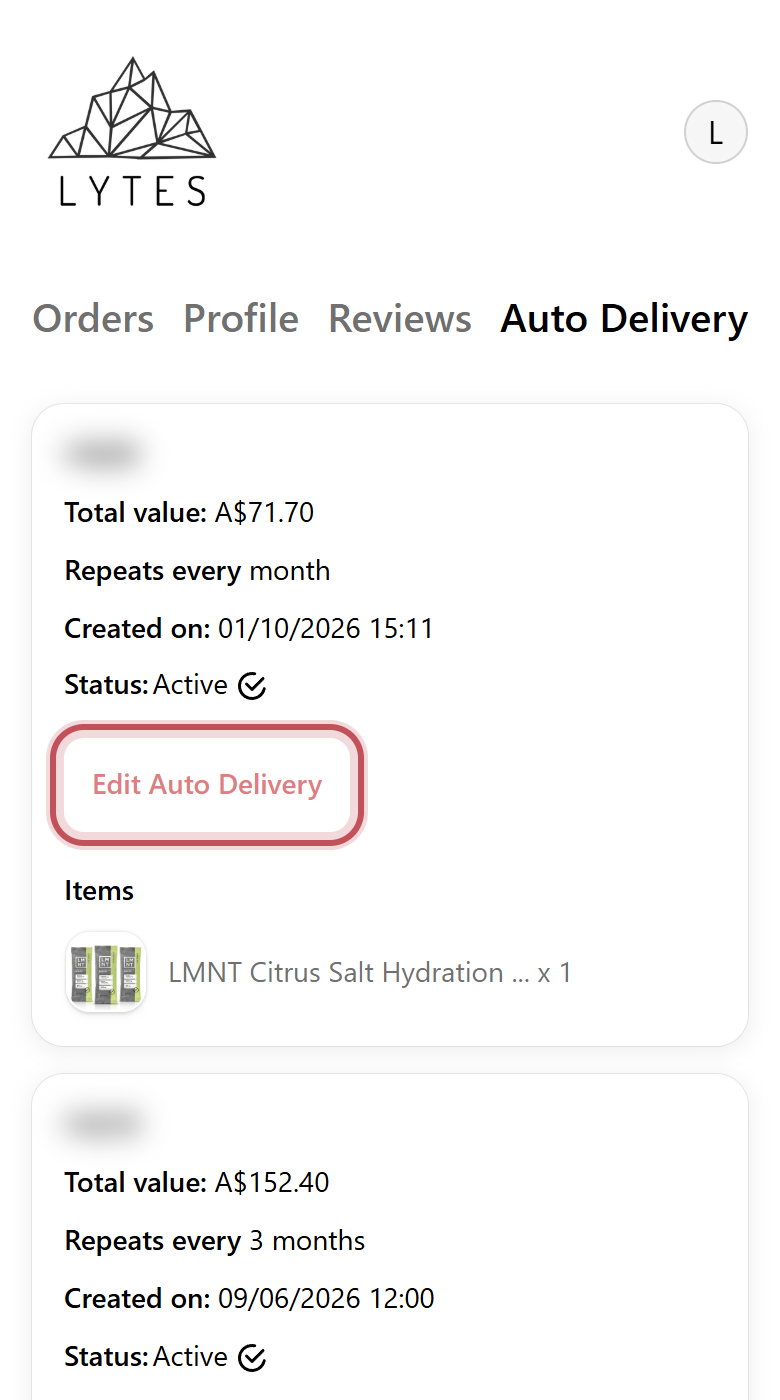
- Tap the Auto Delivery tab at the top.
- Find the Auto Delivery you want to change and tap Edit Auto Delivery.
Code not arriving? Check your junk or promotions folder. Codes expire after a few minutes, so request a fresh one if it's been a while.
Change flavour (or swap products)
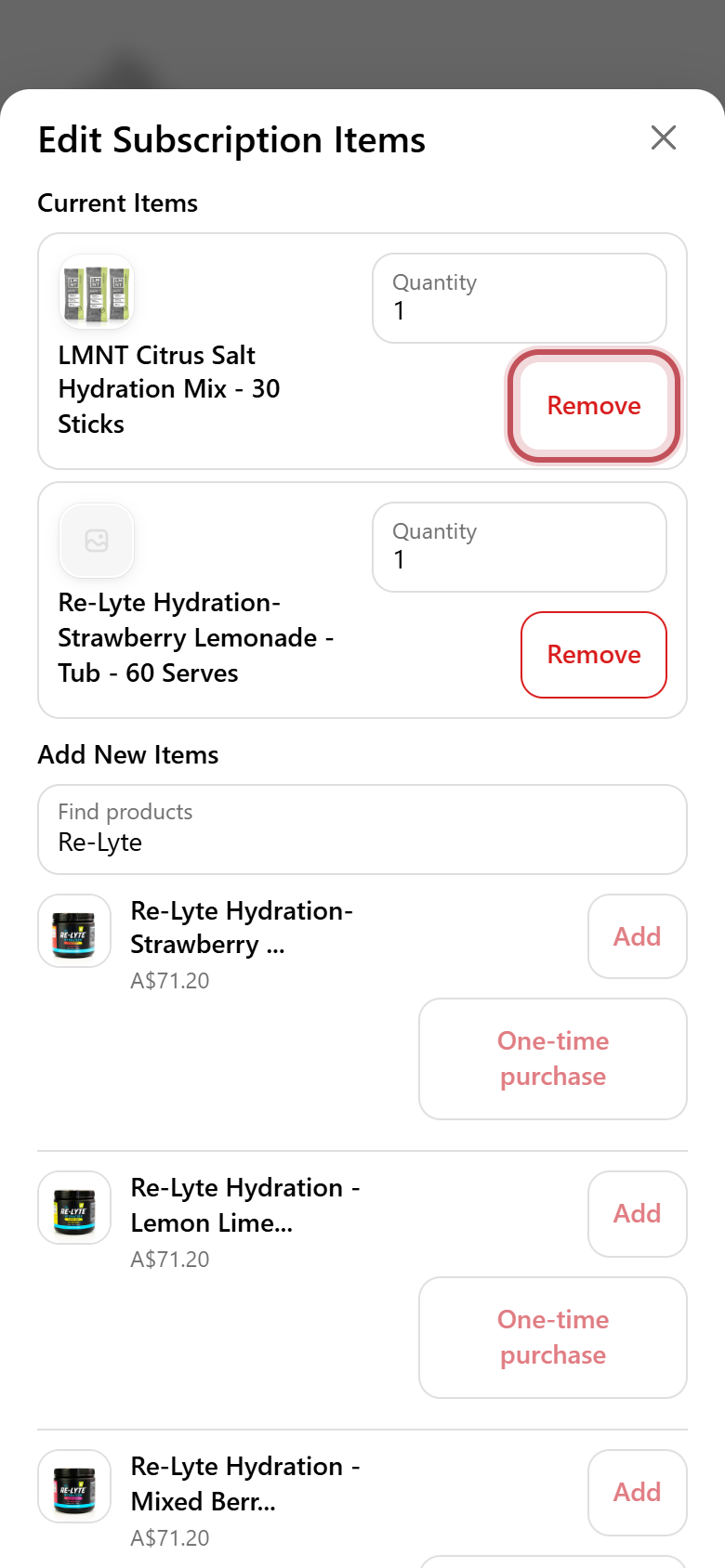
To switch flavours, add the new one and remove the old one. Nothing changes until you tap Save.
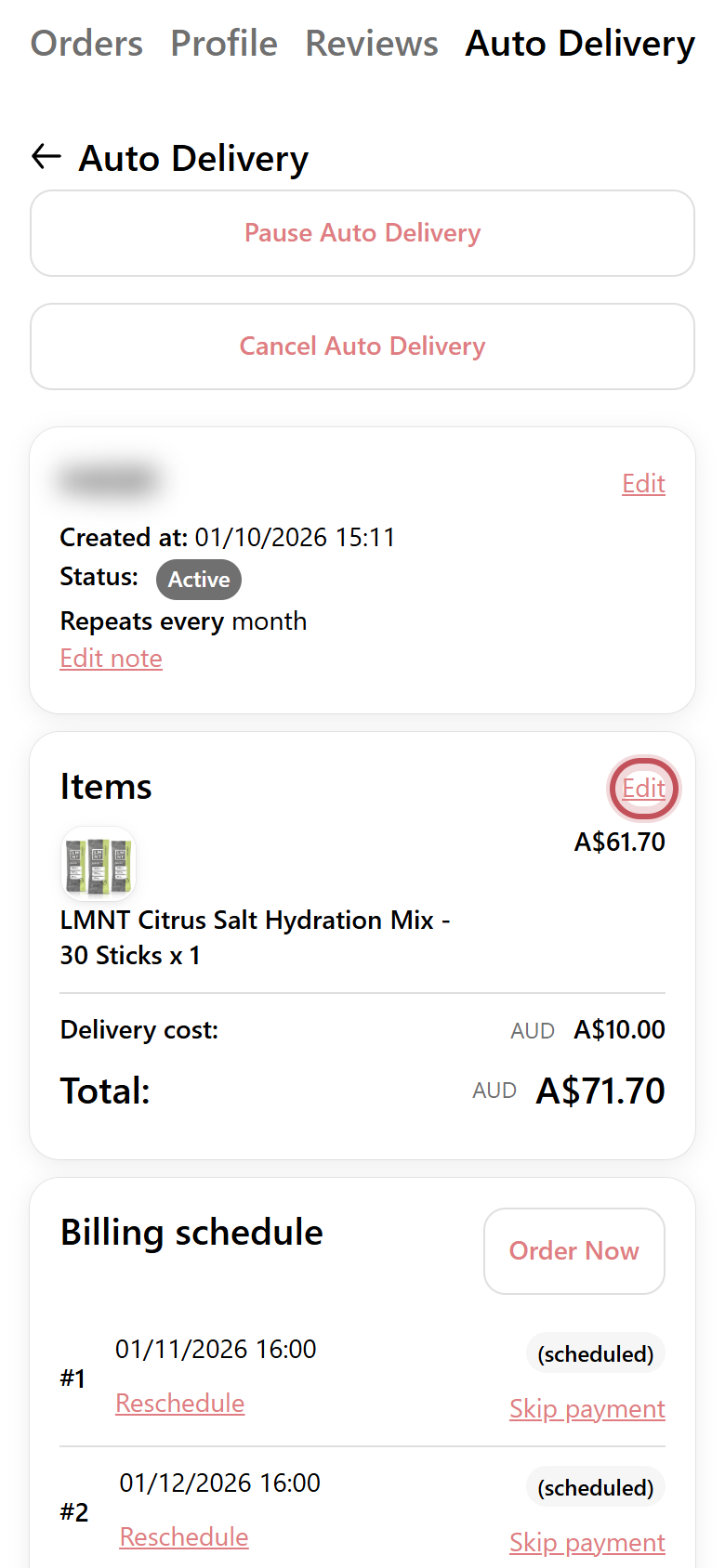
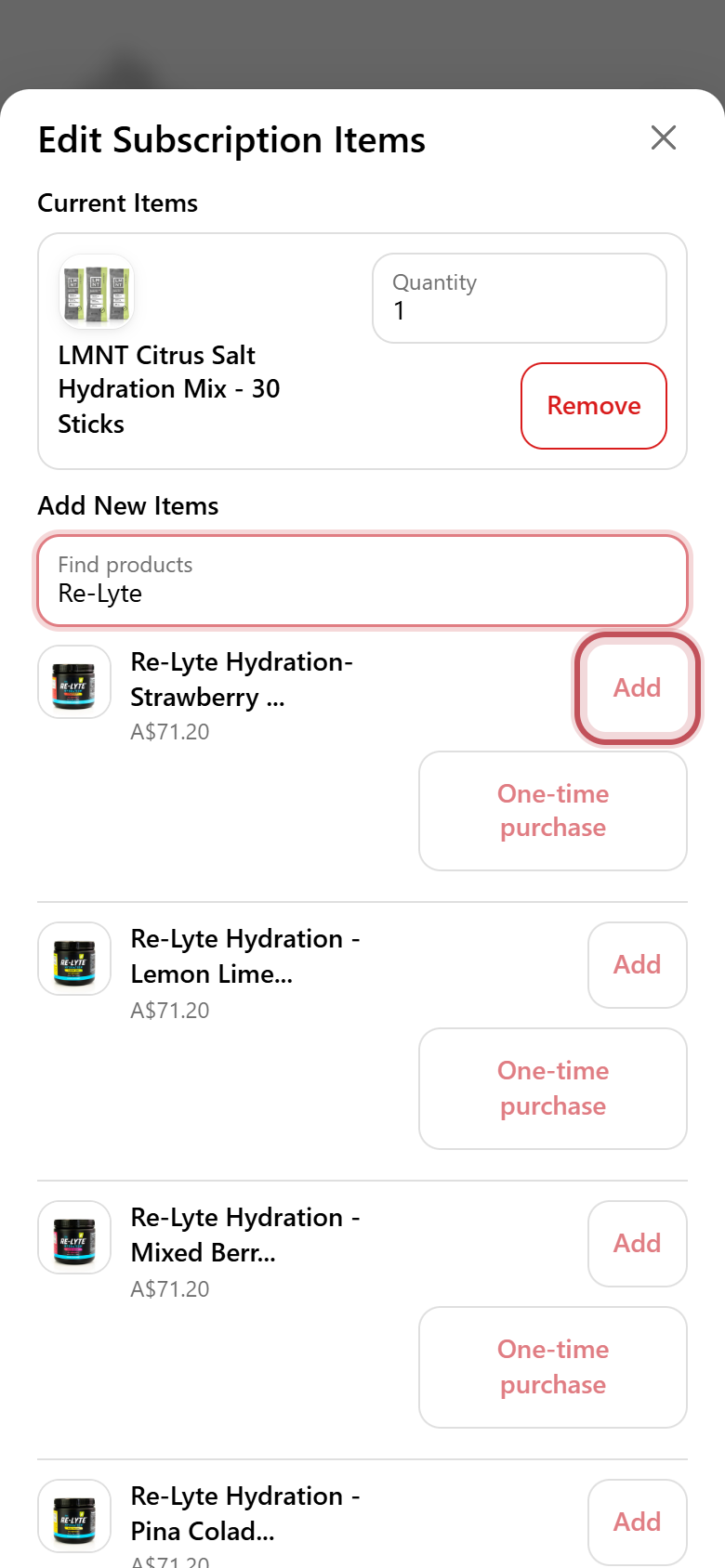
- On your Auto Delivery, tap Edit next to Items.
- In Find products, type the product name (for example "Re-Lyte" or "LMNT").
- Tap Add next to the flavour you want.
- Tap Remove on the flavour you no longer want.
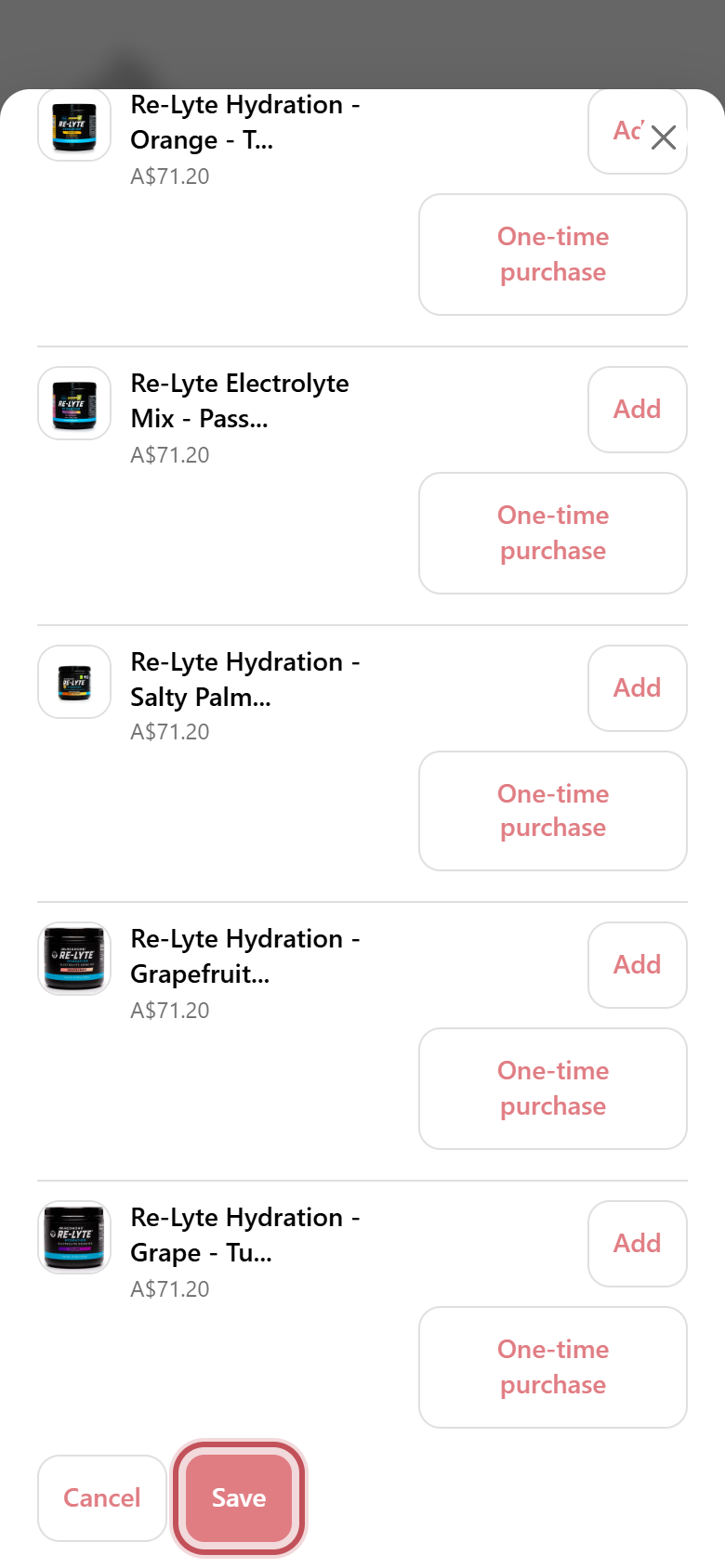
- Scroll to the bottom and tap Save.
Want more than one? Change the Quantity box next to any item before you save.
Add a product to every delivery
Add a second flavour, a bottle or a top-up that arrives with every Auto Delivery.
- Tap Edit next to Items.
- Search for the product in Find products.
- Tap Add. It joins your current items.
- Scroll down and tap Save.
Only want it once? Use One-time purchase instead.
Add a one-off item to your next delivery
Want to try something new, or top up on salt or a bottle? Add it to your next delivery only. It won't repeat.
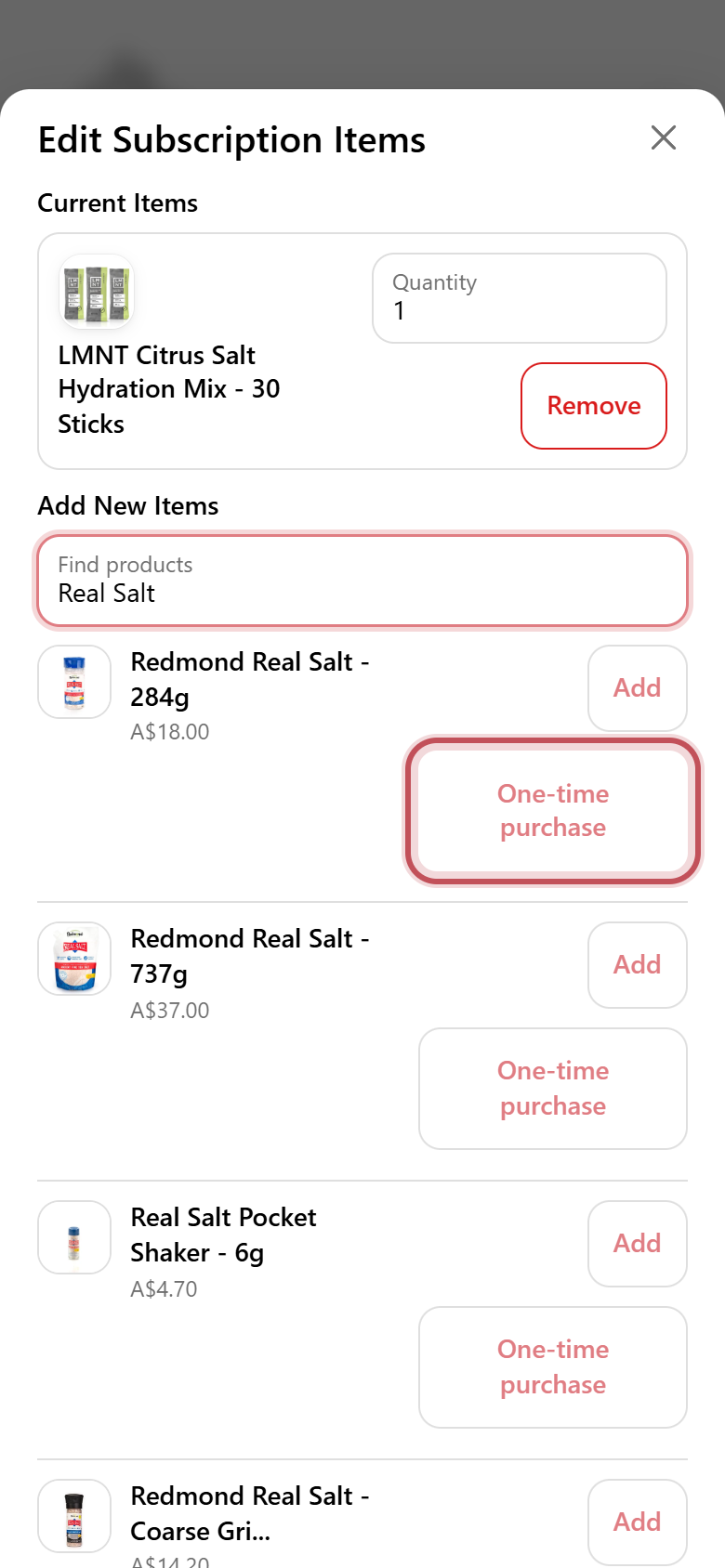
- Tap Edit next to Items.
- Search for the product in Find products.
- Tap One-time purchase (not Add).
- Scroll down and tap Save.
Bonus: it ships in the same box as your next Auto Delivery, then drops off automatically. Your regular items carry on as normal.
Change the date of your next delivery
Running low early, or going away? Move any upcoming order to a date that suits you.
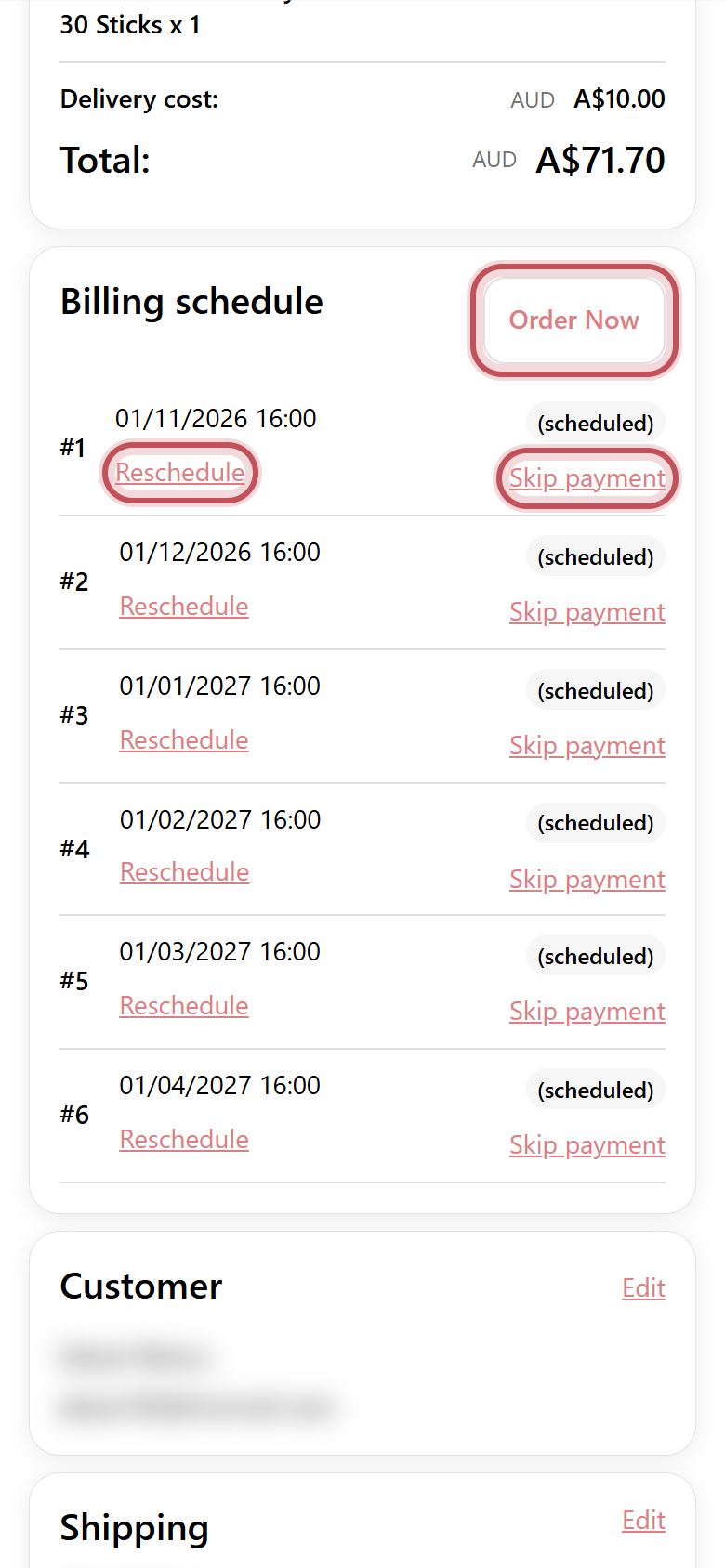
- Scroll down to Billing schedule. It lists your upcoming orders in date order.
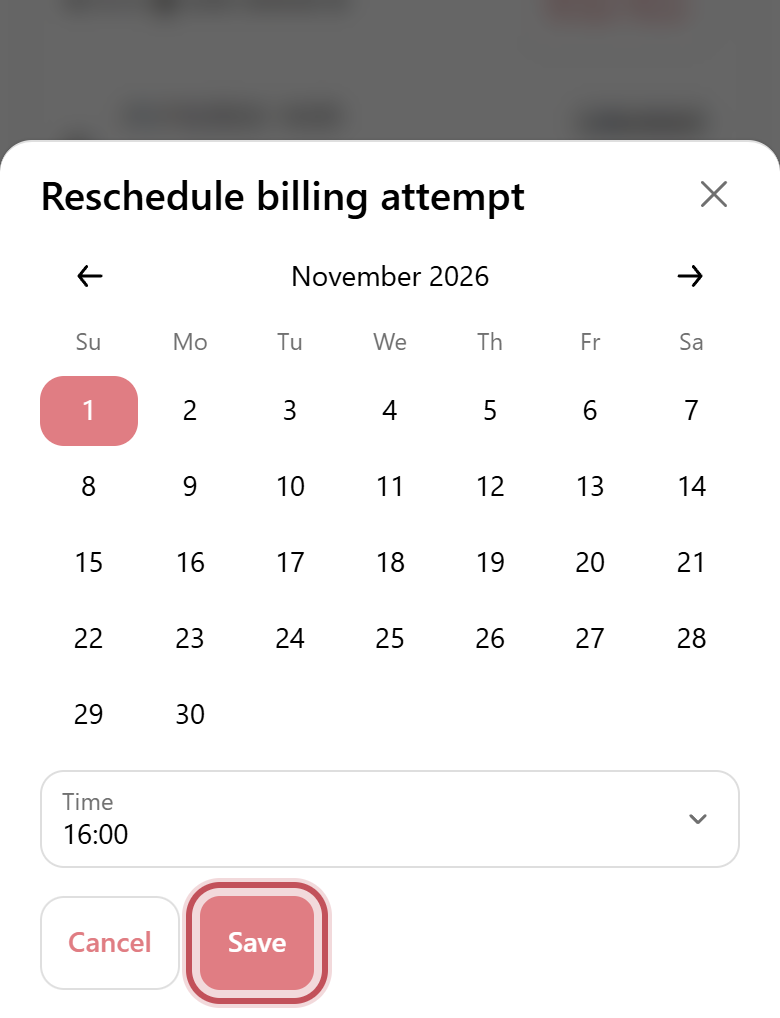
- Tap Reschedule under the order you want to move.
- Pick a new date on the calendar (use the arrows to change month).
- Tap Save.
Good to know: the date shown is when your order is placed and charged. It's then packed and dispatched from our NSW warehouse.
Skip a delivery
Still have plenty left? Skip one order and the rest of your schedule stays as it is.
- Scroll down to Billing schedule.
- Tap Skip payment next to the order you don't need.
- That order now shows Skipped.
Heads up: there's no "are you sure?" step. Skip happens as soon as you tap it.
Changed your mind? Tap Unskip payment on the same order to put it back.
Order now (don't wait for your next date)
Ran out early? Send your next Auto Delivery straight away.
- Scroll down to Billing schedule.
- Tap Order Now at the top right of the schedule.
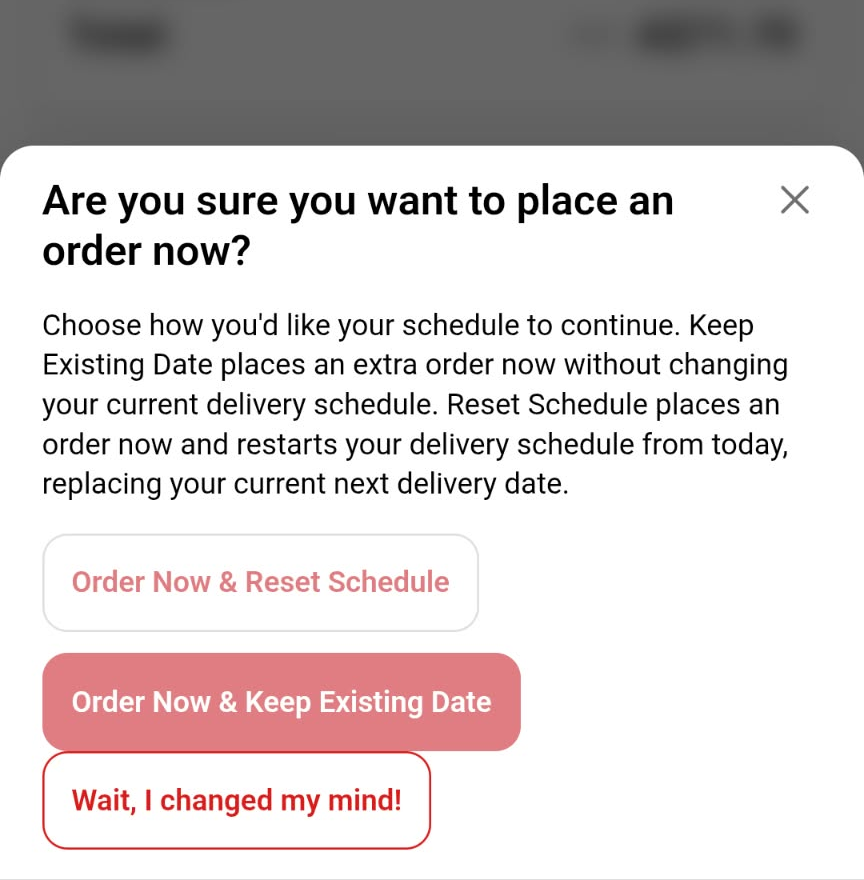
- Choose how you'd like your schedule to carry on:
Order Now & Keep Existing Date: places an extra order now. Your current delivery schedule doesn't change.
Order Now & Reset Schedule: places an order now and restarts your schedule from today, replacing your next delivery date. On a monthly plan, the next one comes a month from now. - Your order is placed and your card is charged within a few minutes.
Not sure which to pick? If you ran out early, Reset Schedule stops two orders arriving close together. Tap Wait, I changed my mind! to close it without ordering.
Fast dispatch: orders placed before 12pm AEST on a business day usually leave our warehouse the same day.
Change how often it arrives
Getting too much, or not enough? Change the gap between deliveries.
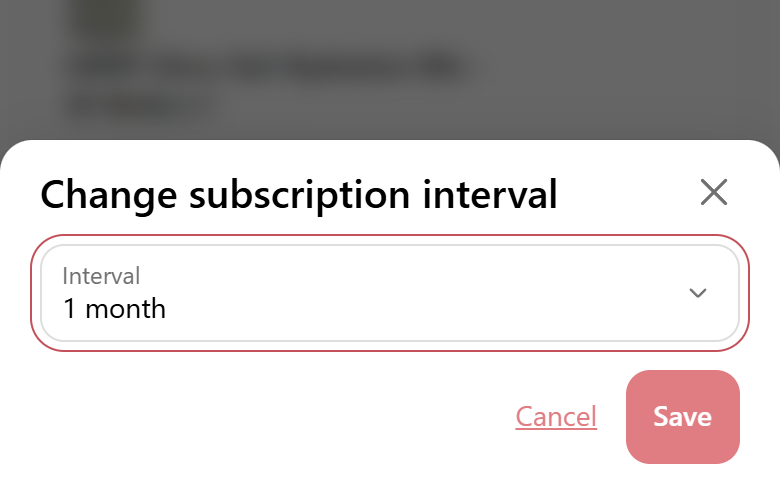
- At the top of your Auto Delivery, find the box showing Repeats every…
- Tap Edit in the top-right corner of that box.
- Choose a new Interval from the drop-down.
- Tap Save.
Tip: stocking up faster than you use it? A longer interval is usually better than cancelling.
Pause your Auto Delivery
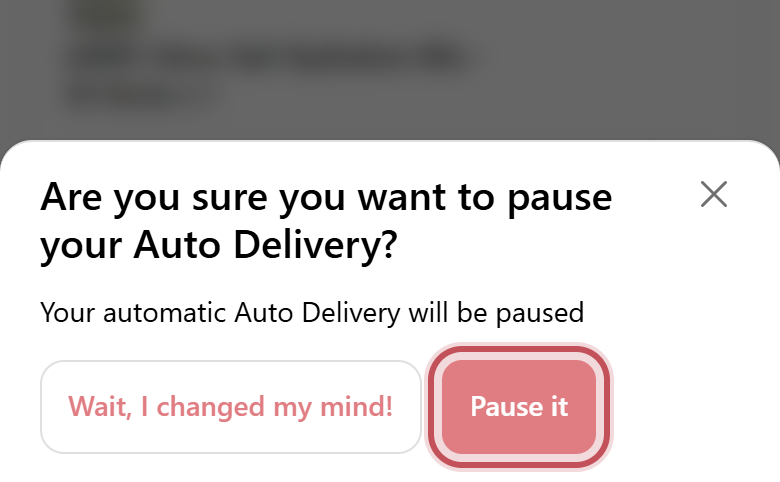
Travelling, training less or just well stocked? Pause instead of cancelling. Your items and settings stay saved, along with your 5% Auto Delivery discount, ready to restart whenever you like.
- Open your Auto Delivery (see how to sign in).
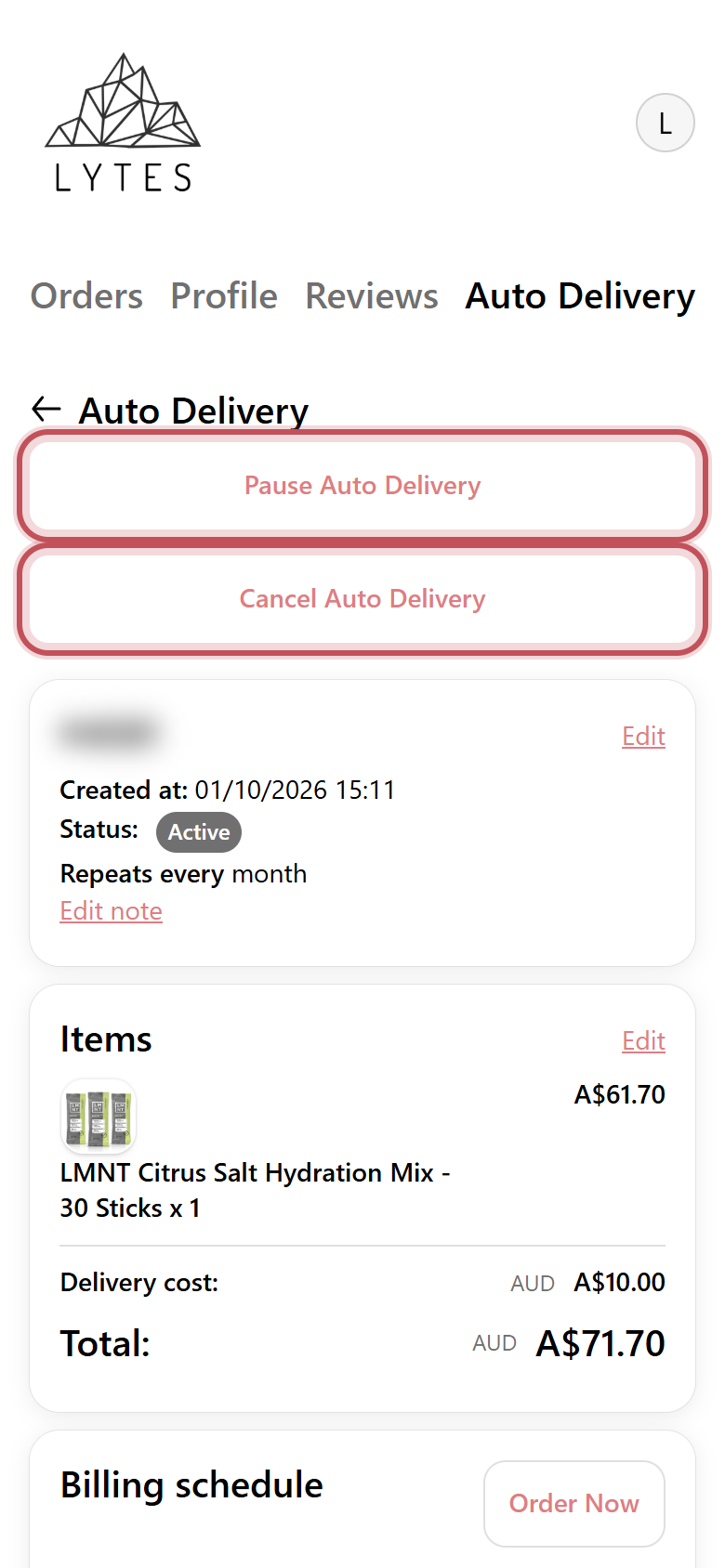
- Tap Pause Auto Delivery at the top.
- Tap Pause it to confirm.
Ready to restart? Open the same Auto Delivery and tap Resume Auto Delivery at the top. Nothing is charged while it's paused.
Update your delivery address or card
Moved house, or got a new card? Update it before your next order goes out.
- Scroll to the bottom of your Auto Delivery.
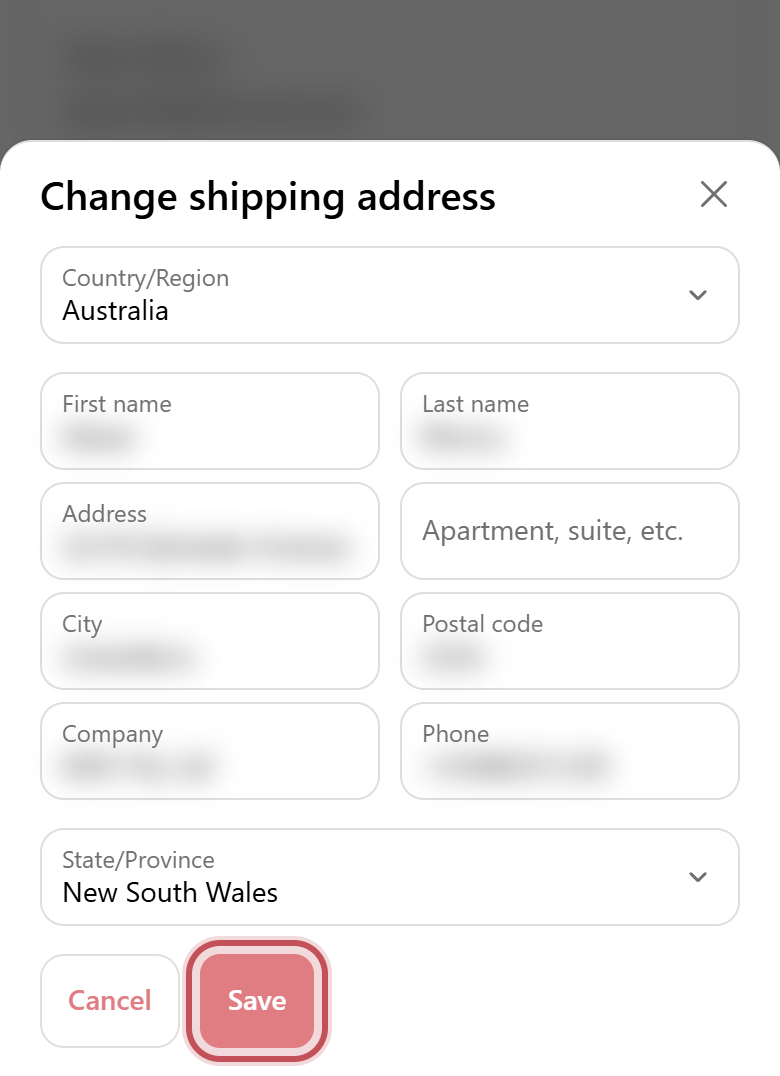
- Address: tap Edit next to Shipping, update your details and tap Save.
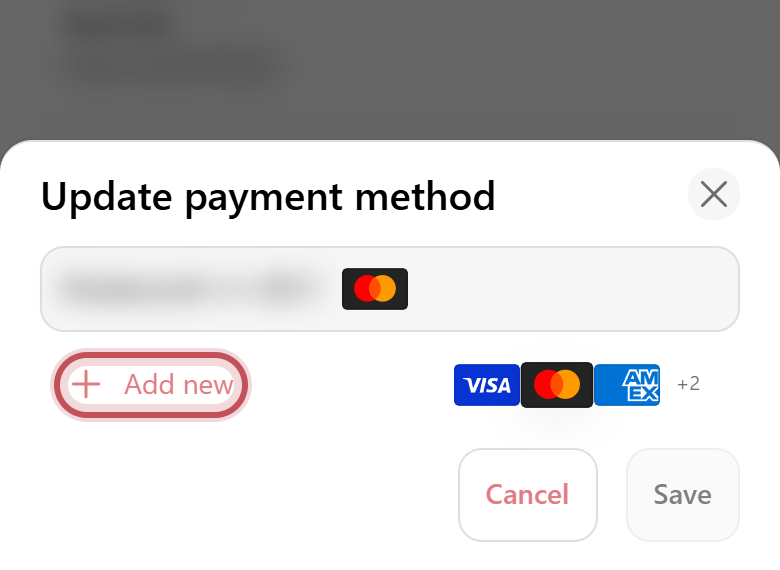
- Card: tap Edit next to Payment method, tap Add new, enter your card and tap Save.
More than one Auto Delivery? Each one has its own address and card, so update each one.
Cancel your Auto Delivery
We're sorry to see you go. You can cancel any time at no cost, with no lock-in.
Before you cancel: most people just need a break
- Pause and restart when you're ready. You keep your items and your 5% Auto Delivery discount.
- Skip one delivery if you've still got plenty left.
- Get it less often (for example every 2 or 3 months).
- Switch flavours if you're over the one you've got.
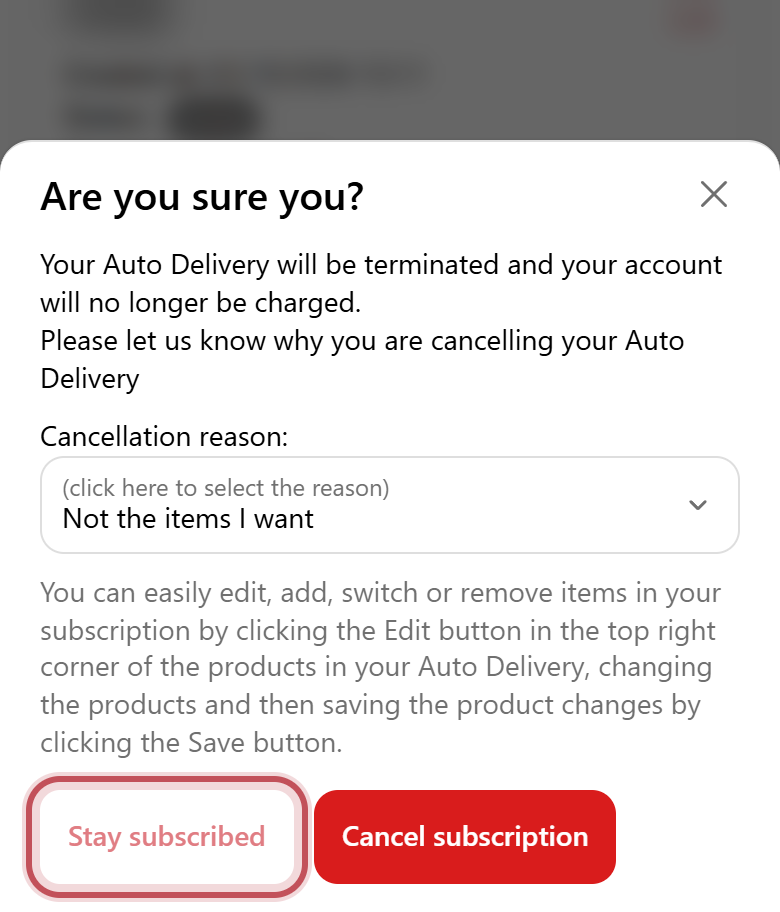
- Open your Auto Delivery and tap Cancel Auto Delivery.
- Choose a reason from the Cancellation reason list. It helps us improve.
- Tap Cancel subscription to finish.
Changed your mind? Tap Stay subscribed and nothing changes.
Common questions
I have more than one Auto Delivery. Which one do I change?
Each Auto Delivery is listed separately on the Auto Delivery tab, with its own items and schedule. Tap Edit Auto Delivery on the one you want to change. Changes to one don't affect the others.
When will I be charged?
On the date shown for each order in your Billing schedule. You can move it (Reschedule), skip it, or bring it forward (Order Now) any time before that date.
Can I mix flavours or brands in one Auto Delivery?
Yes. Add as many products as you like using Add a product, or build a mixed box from scratch with our Auto Delivery builder.
I skipped by mistake. Can I undo it?
Yes. Tap Unskip payment on that order in your Billing schedule and it goes back to scheduled.
Is there a fee to pause or cancel?
No. You can pause, skip or cancel any time at no cost. There's no lock-in.
Still stuck?
Our team reads every message and is happy to make the change for you.